How to sell your business: a screen-by-screen walkthrough
A step-by-step tour of selling your online business on Online Asset, from a free valuation to tracking deals on your dashboard, with confidentiality and your named advisor guiding every screen.
Key takeaways
- Start with a free, no-obligation valuation to set a realistic price band before you list.
- Every listing splits public teaser fields (headline, category, price band) from confidential fields (asking price, revenue, profit) that only vetted buyers see after signing a deal-specific NDA.
- A named advisor accompanies you through every screen and can act on steps with you (assist mode) while you approve the big decisions.
- The per-deal data room lets you prepare and share documents, with each one marked Public or Pending.
- Escrow and in-app e-signature connect in a later phase (Phase 2). For now your advisor coordinates funding and signing off-platform and keeps the deal room updated, with funds secured before any transfer.
Selling an online business is a big decision, and Online Asset is built so you never have to make it alone. A named advisor accompanies you from your first valuation to the final transfer, and can act on steps with you in assist mode while you approve the big calls.
This walkthrough follows the real screens in order. Along the way, keep one idea in mind: confidentiality is graded. The public marketplace only ever shows a teaser (category, headline, and price band), while sensitive numbers stay locked until a buyer is verified and has signed a deal-specific NDA. Here is exactly what you will see and do on each screen.
Step 1: Get a free, confidential valuation
Head to the estimation page to start. This is a free, no-obligation valuation whose job is to set a realistic price band, not to promise a guaranteed sale price. Fill in Your details at the top: Full name and Email are required, and Website is optional (it is kept private and never published).
Scroll to the About the business section and pick your Category. Our M&A team reviews every submission and follows up privately. Nothing you enter here is published to the marketplace, so you can be candid about your numbers.
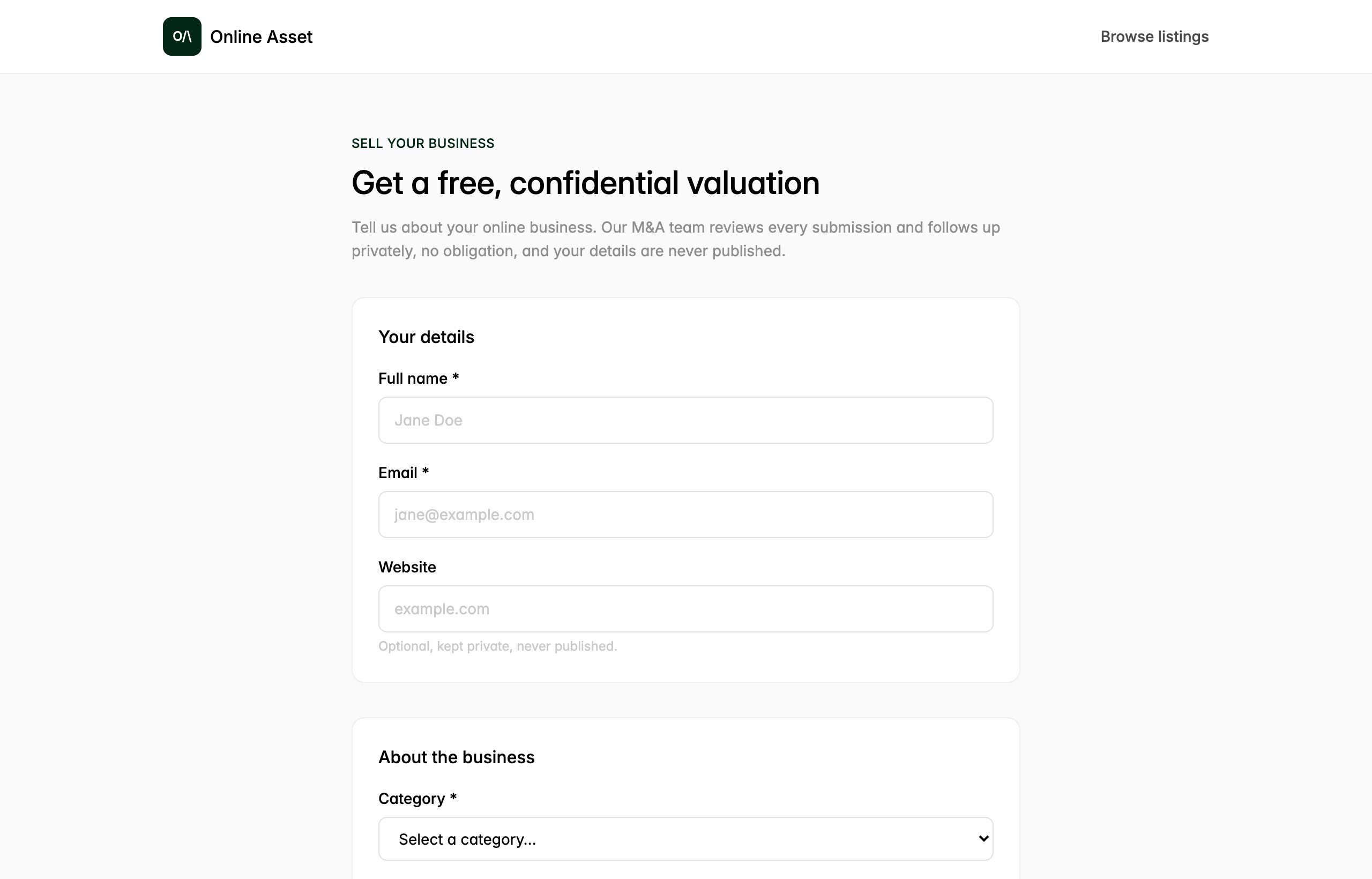
Step 2: Create your listing (public teaser vs confidential fields)
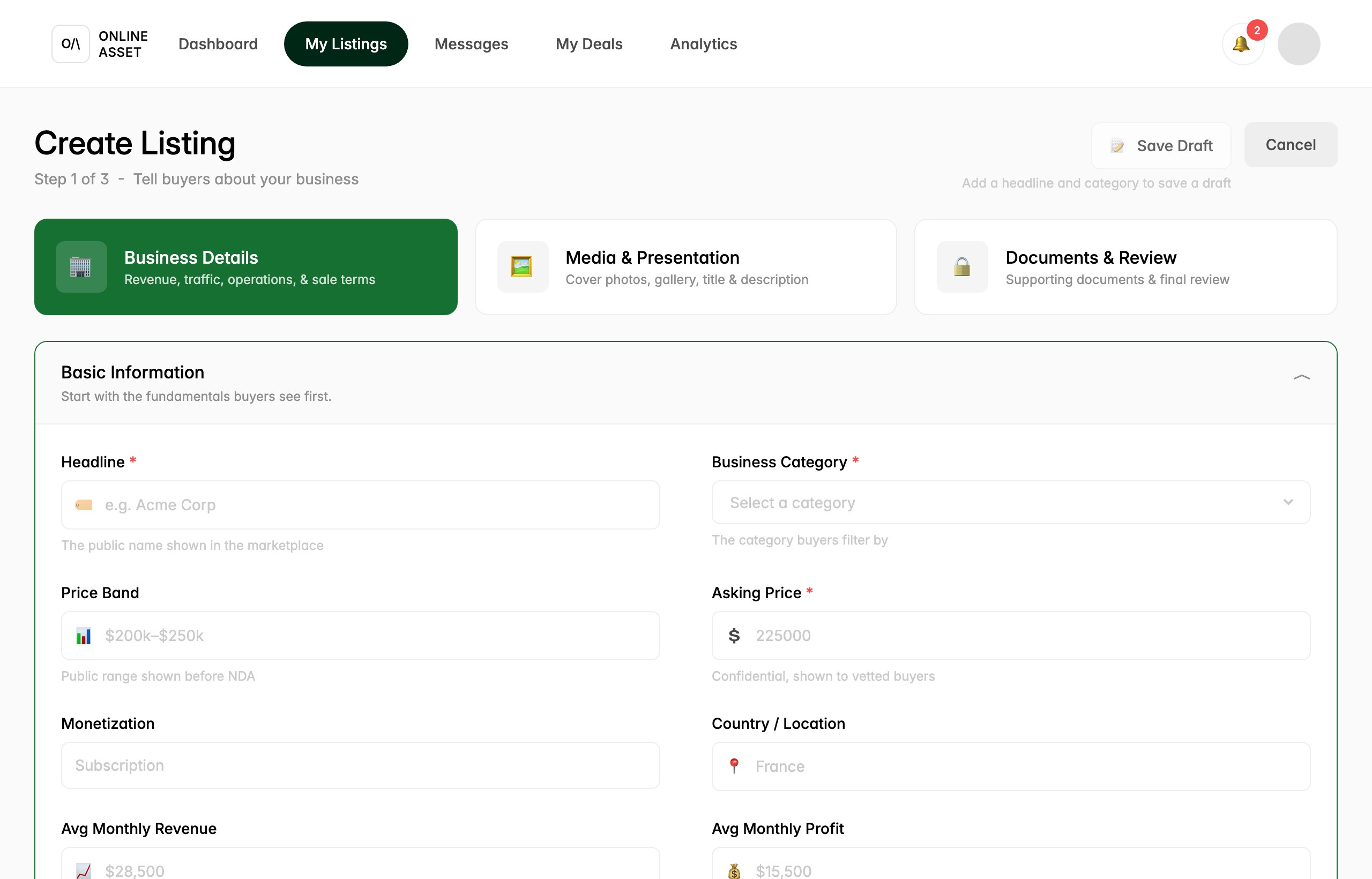
When you are ready to list, open Create Listing. This is a three-step wizard: Business Details, then Media & Presentation, then Documents & Review. You start on Step 1 of 3, Business Details. Use Save Draft at any point (once you have a headline and category) or Cancel to back out.
In Basic Information, notice how the fields split by confidentiality. Headline and Business Category are the public name and filter shown in the marketplace. Price Band is the public range shown before an NDA (for example, $200k to $250k). Asking Price, however, is confidential and shown only to vetted buyers, and the same rule applies to Avg Monthly Revenue and Avg Monthly Profit. Fill in Monetization and Country / Location too, then continue through the wizard.
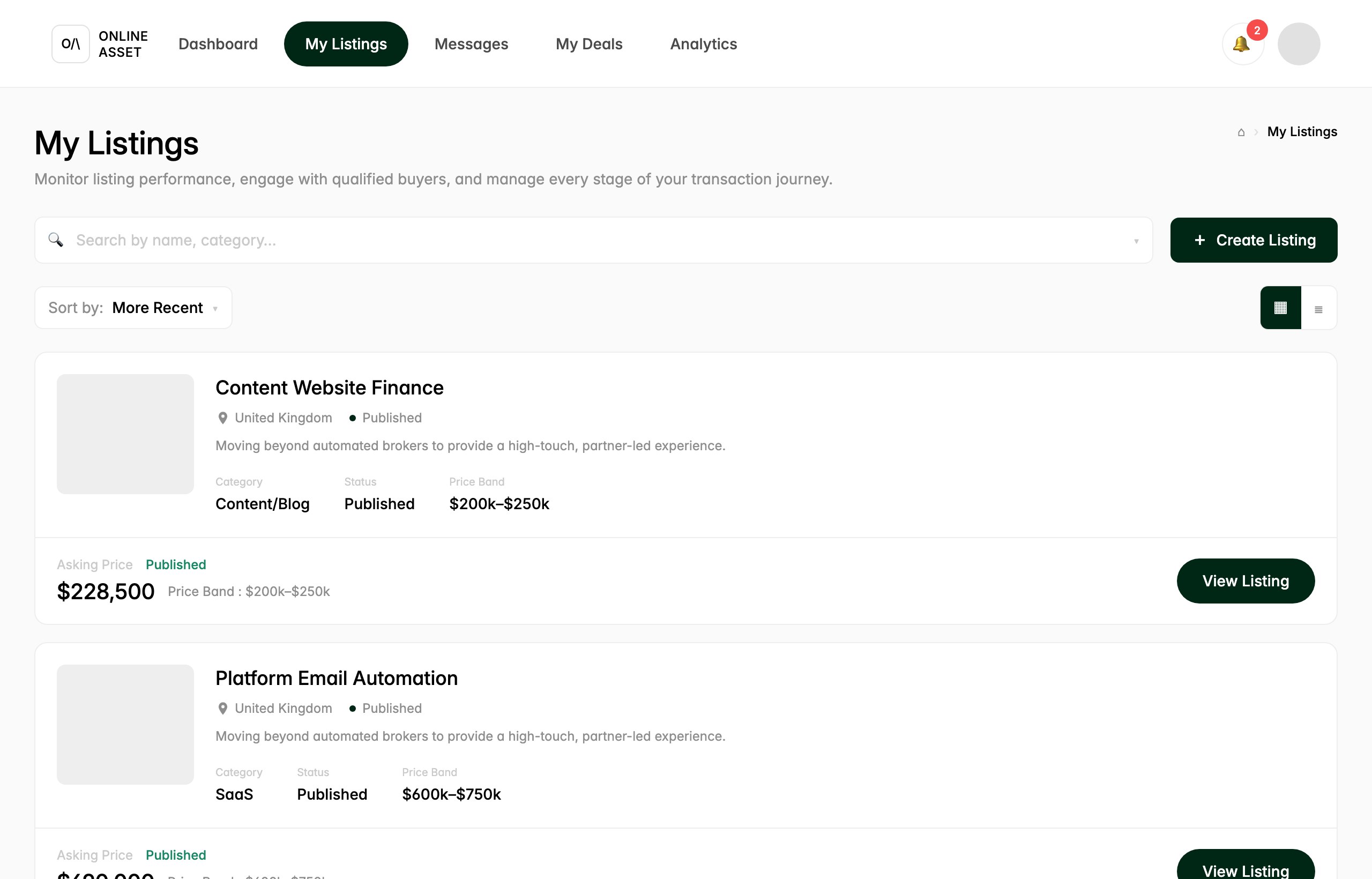
Step 3: Manage your listings
The My Listings page is your control center for everything you have posted. Each card shows the headline, location, and a status such as Published, along with Category and Price Band. You can search by name or category, sort (for example, More Recent), and switch between grid and list views.
Notice that each card surfaces the public price band openly, while the exact Asking Price is labeled and shown to you as the seller. Use Create Listing to add another, or View Listing to open one and manage its stage. Remember that sellers can see a buyer's verification level (G0 to G3, where G0 is new and higher levels mean more vetting), which helps you judge who is serious.
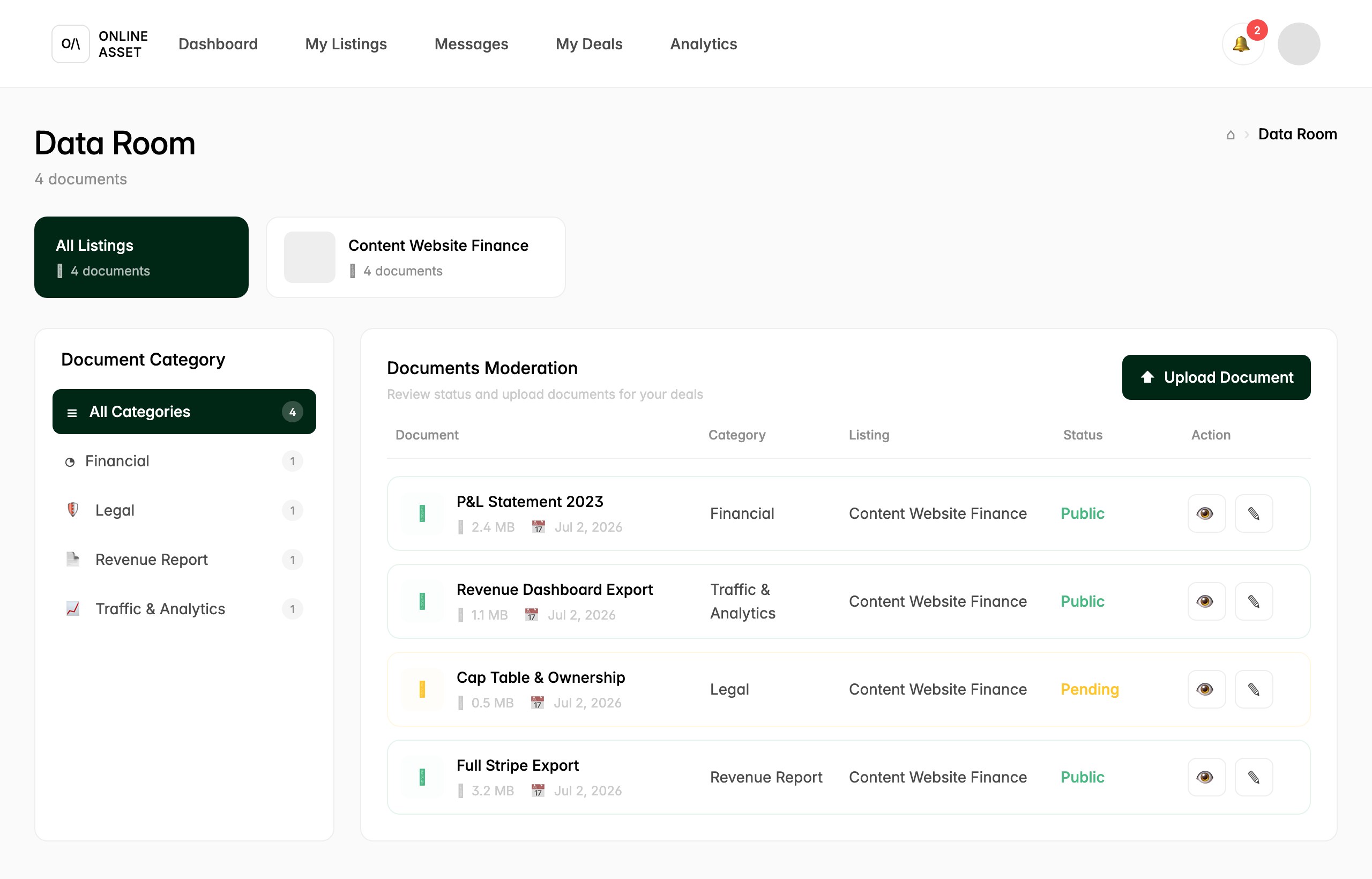
Step 4: Prepare the data room
Documents for a deal live in its data room. Open it and you will see your documents grouped by Document Category (Financial, Legal, Revenue Report, Traffic & Analytics), with a running count. The Documents Moderation panel lists each file with its category, the listing it belongs to, and a Status.
Status matters here: files marked Public are cleared to share, while Pending items are still under review. Use Upload Document to add materials like a P&L statement or cap table, and the eye and edit icons to preview or update each one. Your advisor keeps this room current as the deal moves through due diligence.
Step 5: Talk to buyers and your advisor
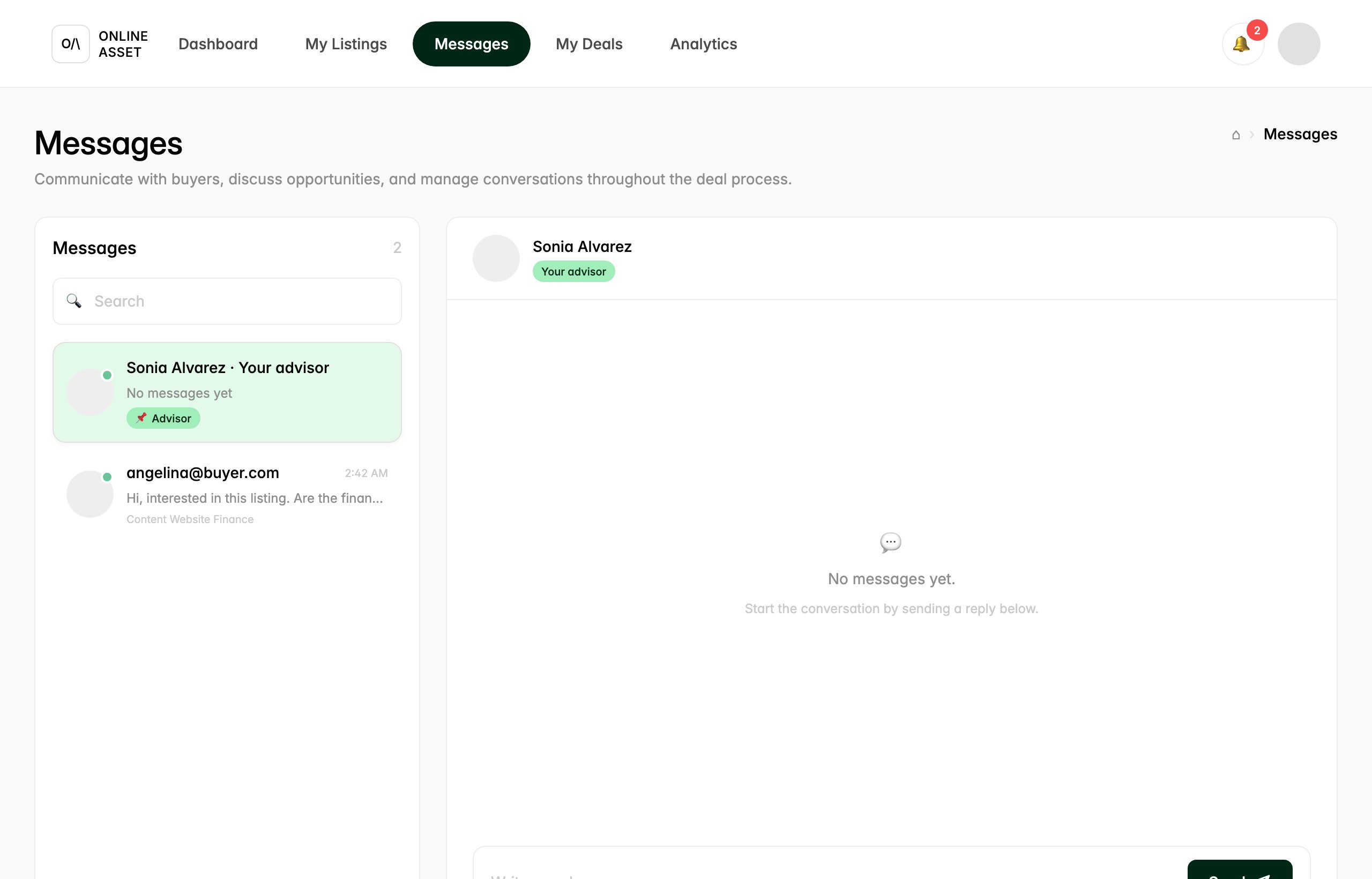
The Messages screen is where you communicate with buyers and your advisor in one place. Threads appear on the left. Your advisor is pinned and clearly tagged (here, Sonia Alvarez with a Your advisor badge), and buyer threads sit below, each tied to the relevant listing.
Select a thread to read and reply in the panel on the right. A buyer might open with a question like whether the financials are available; you can loop in your advisor, who can act on steps with you, before deciding what to share. This is the throughline of the platform: you are never negotiating alone.
Step 6: Track everything from the dashboard
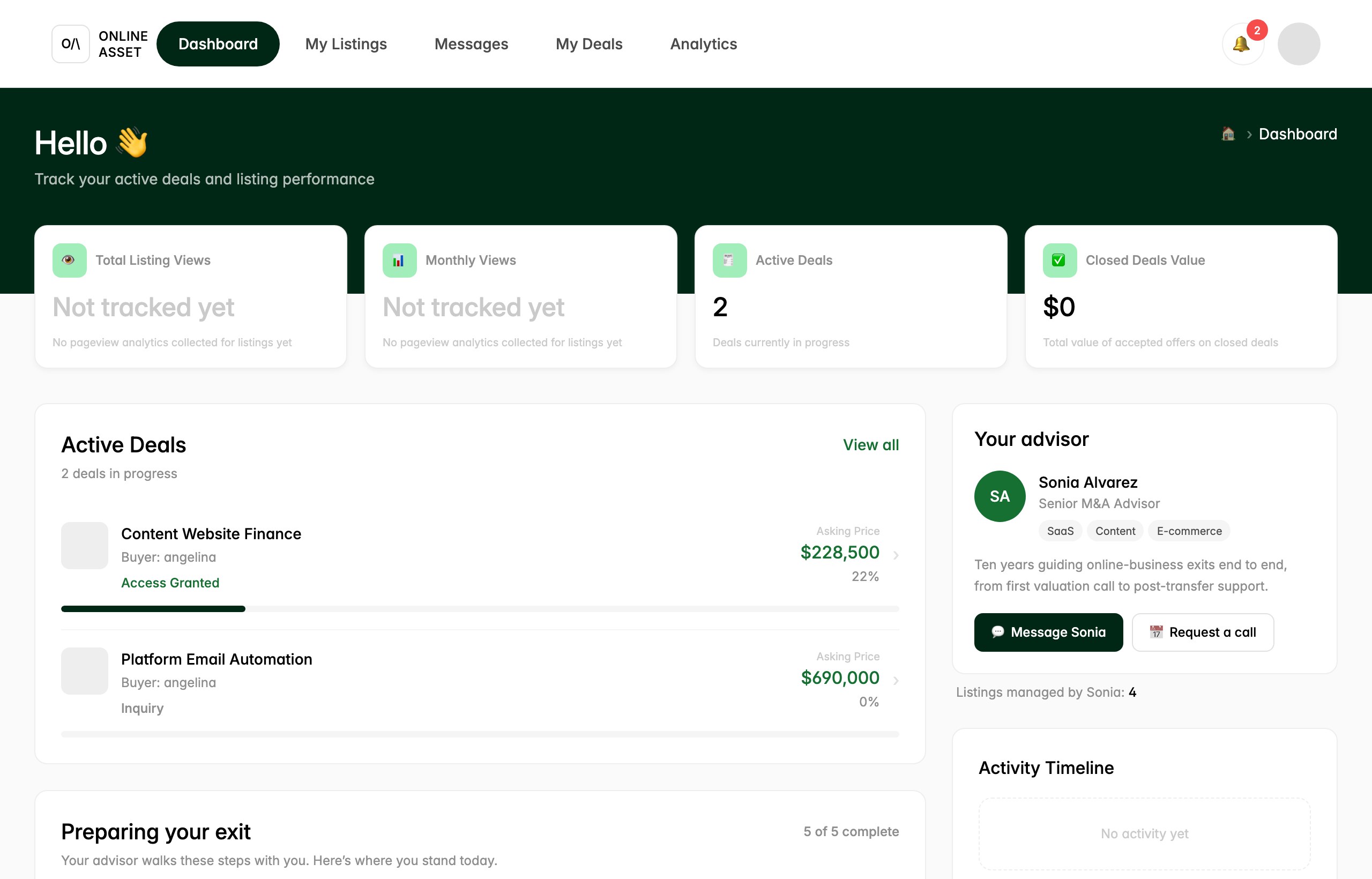
Your Dashboard ties it all together. The top cards summarize Total Listing Views, Monthly Views, Active Deals, and Closed Deals Value (view counts read Not tracked yet until analytics are collected). Below, Active Deals lists each deal with its buyer, asking price, current stage (such as Access Granted or Inquiry), and a progress bar, so you can see exactly where you stand across the 10-stage process (Inquiry, NDA, Access granted, Due diligence, Offer, Letter of intent, Escrow, Sale & purchase agreement, Transfer, Closed).
On the right, the Your advisor card names the person guiding you (Sonia Alvarez, Senior M&A Advisor) with quick Message and Request a call buttons, plus an Activity Timeline. One honest note: escrow providers and in-app e-signature connect in a later phase (Phase 2). For now your advisor coordinates escrow funding and signing off-platform and keeps the deal room updated, with the same safeguard that funds are secured before any transfer.
That is the full journey: valuation, listing, management, data room, conversations, and tracking. Confidentiality protects your numbers at every step, and your named advisor walks each screen with you while you keep approval over the decisions that matter.
Try it yourself.
Follow the steps in the real product. A named advisor is assigned the moment you start.